 Minerva
Coming soon to the App Store
Minerva
Coming soon to the App Store
Minerva
Coming soon to the App Store
Minerva
Coming soon to the App Store
The console lets you oversee your children and see reports from your own device — while each child browses safely on theirs. Seven gentle steps, and the owl does the rest.
Before you start: set the console up on a grown-up's device (not a child's), and make sure it's signed in to iCloud — the console uses your private iCloud to keep everything in step across your devices. Nothing about your child's browsing is ever shared outside your own iCloud.
When you first open Minerva, it asks how you'd like to set it up. Choose Set up a grown-up console.
💡The other options put the safe browser on a child's device, or join another grown-up who's already set up a child — those are covered in separate guides.
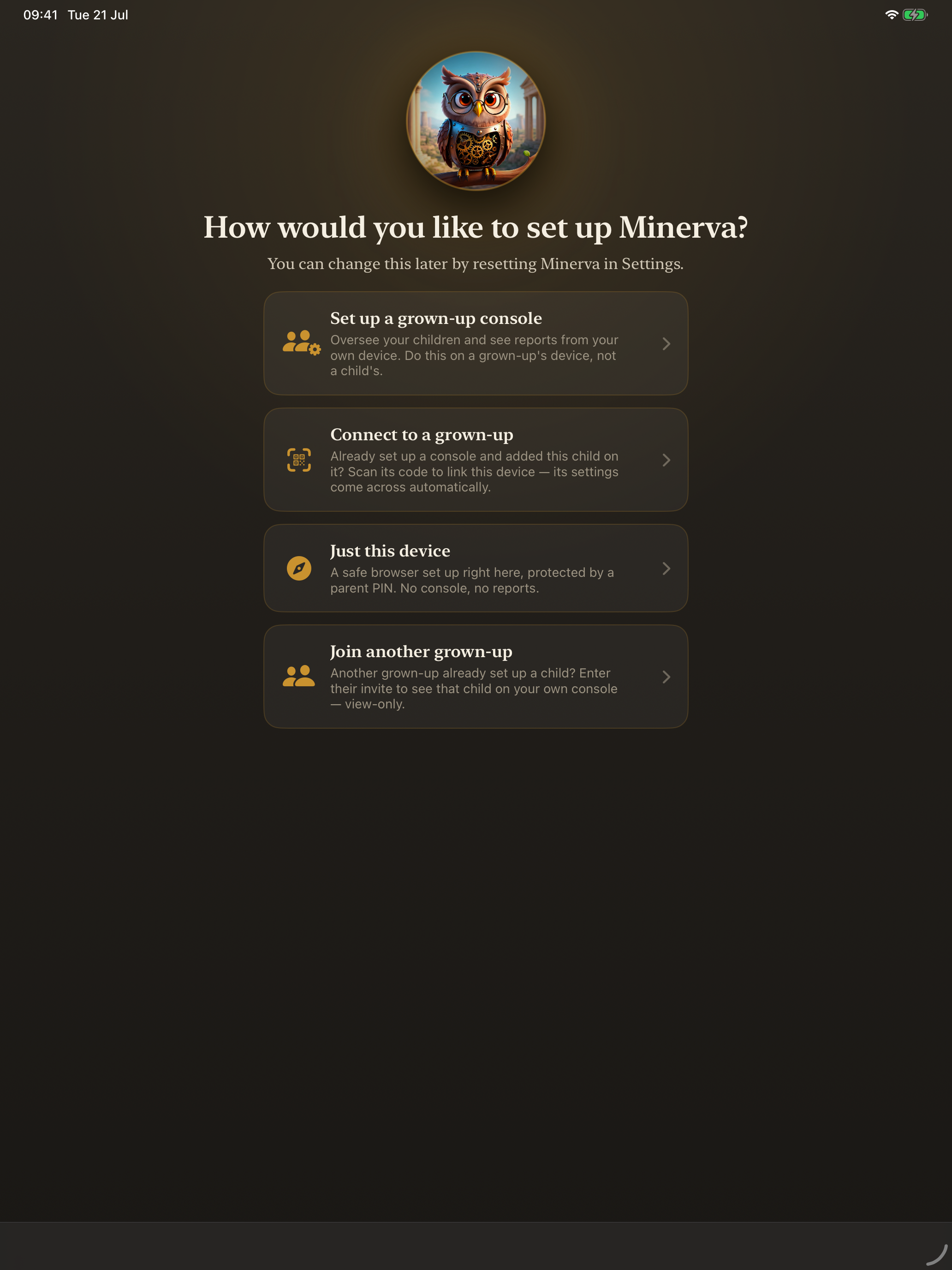 Choose “Set up a grown-up console”
Choose a 4-digit PIN only you know. You'll use it to open settings, let a blocked page or video through, and pause filtering — it's the key to every grown-up control.
Enter it once, then again to confirm.
🔑Keep it memorable: the PIN can't be recovered. If you forget it you'd have to reset Minerva and start over.
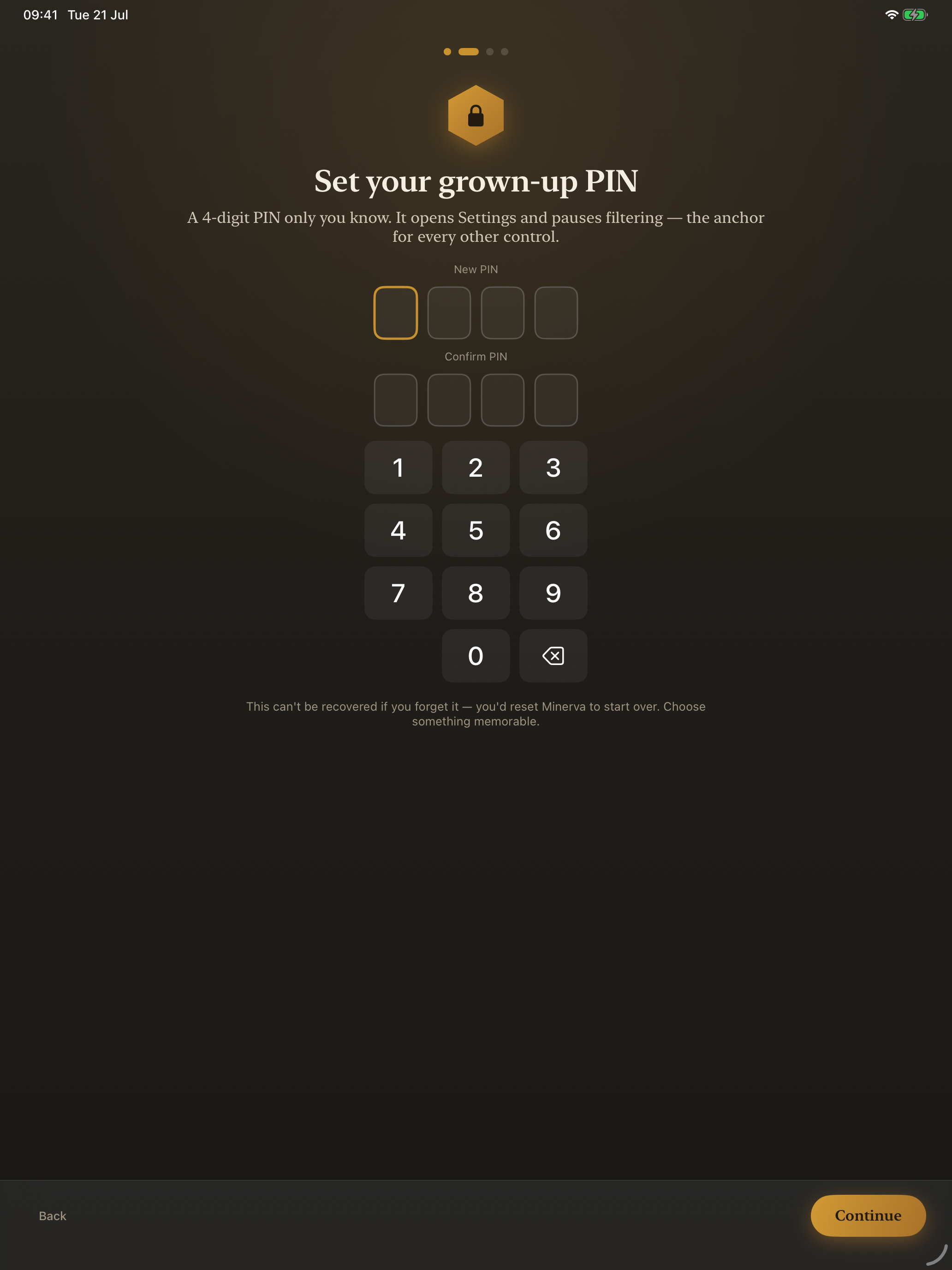 Set your grown-up PIN
When you change something from the console, your child sees who did it — so pop in your name (or “Mum”, “Dad”, etc.).
This is optional; leave it blank and they'll just see “a grown-up.”
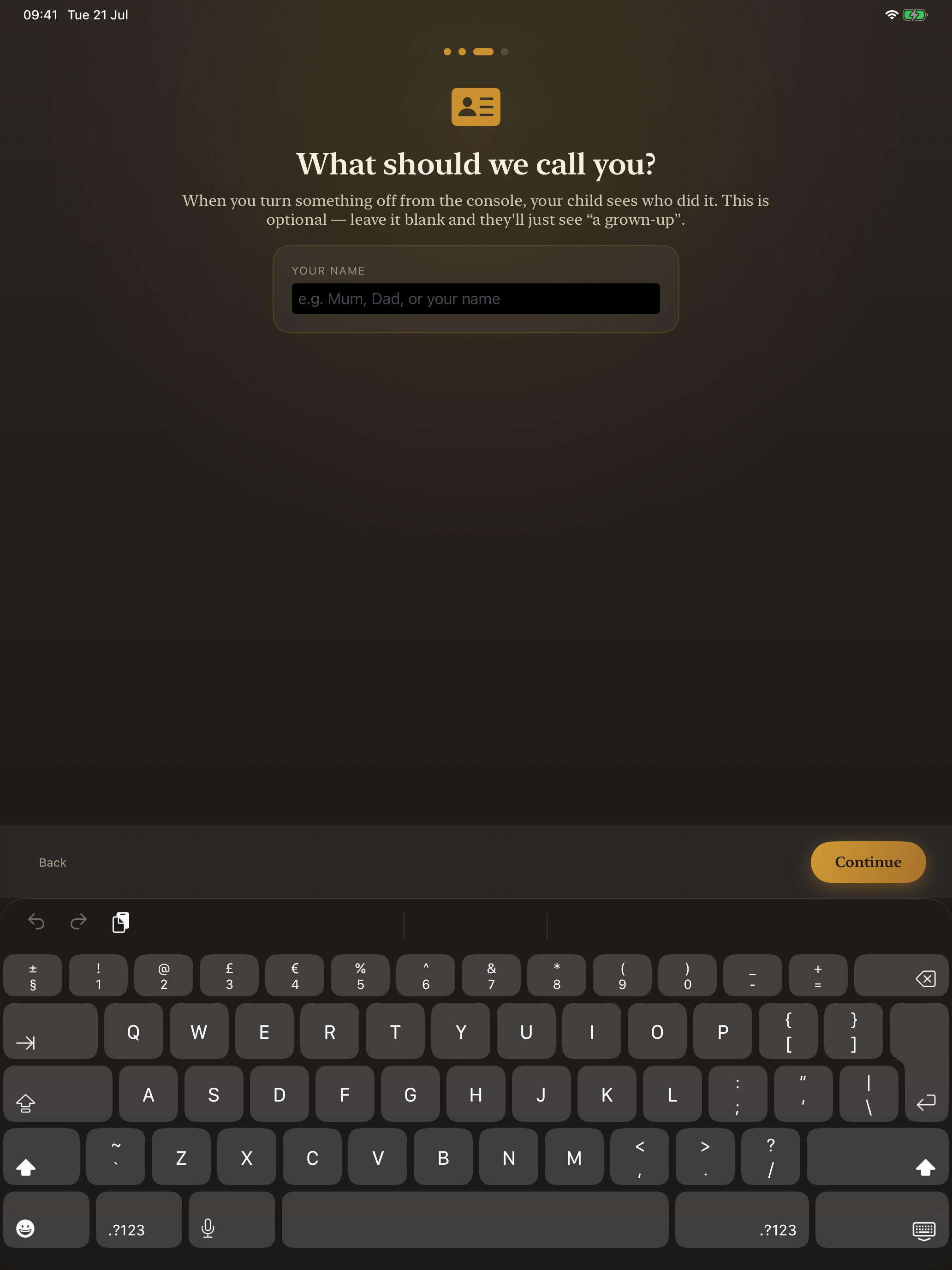 What should we call you?
Your console is ready. Next you'll pair it with your child's device so their activity and any alerts arrive here. You can change anything later from Settings (the gear).
Tap Open console to continue.
🪄Setting Minerva up on this same device as a child's browser too? Use “Also set up the child browser here” on this screen — handy for trying both on one iPad.
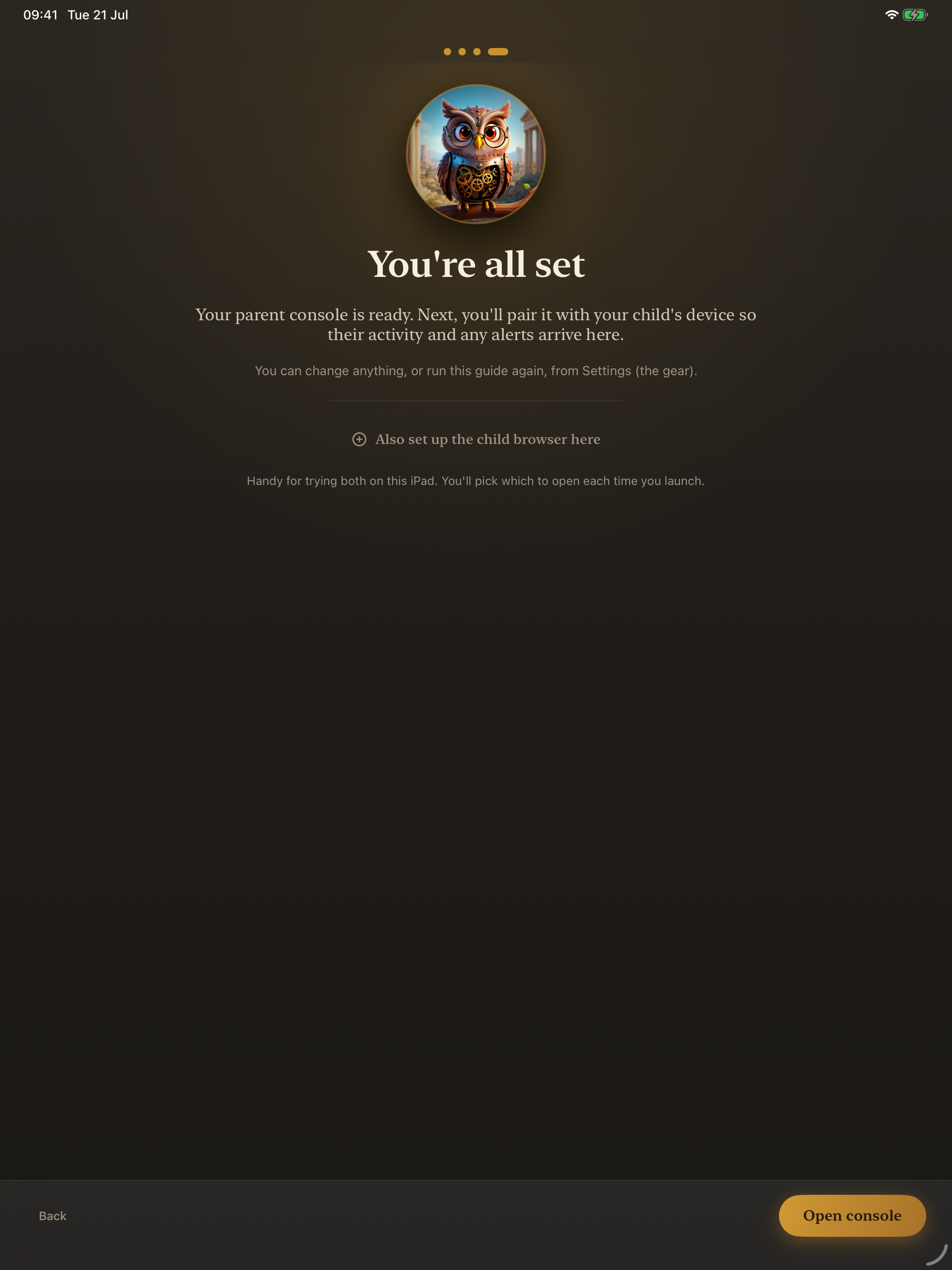 You're all set
With no children added yet, the console shows a friendly empty state.
Tap Add a child to get started.
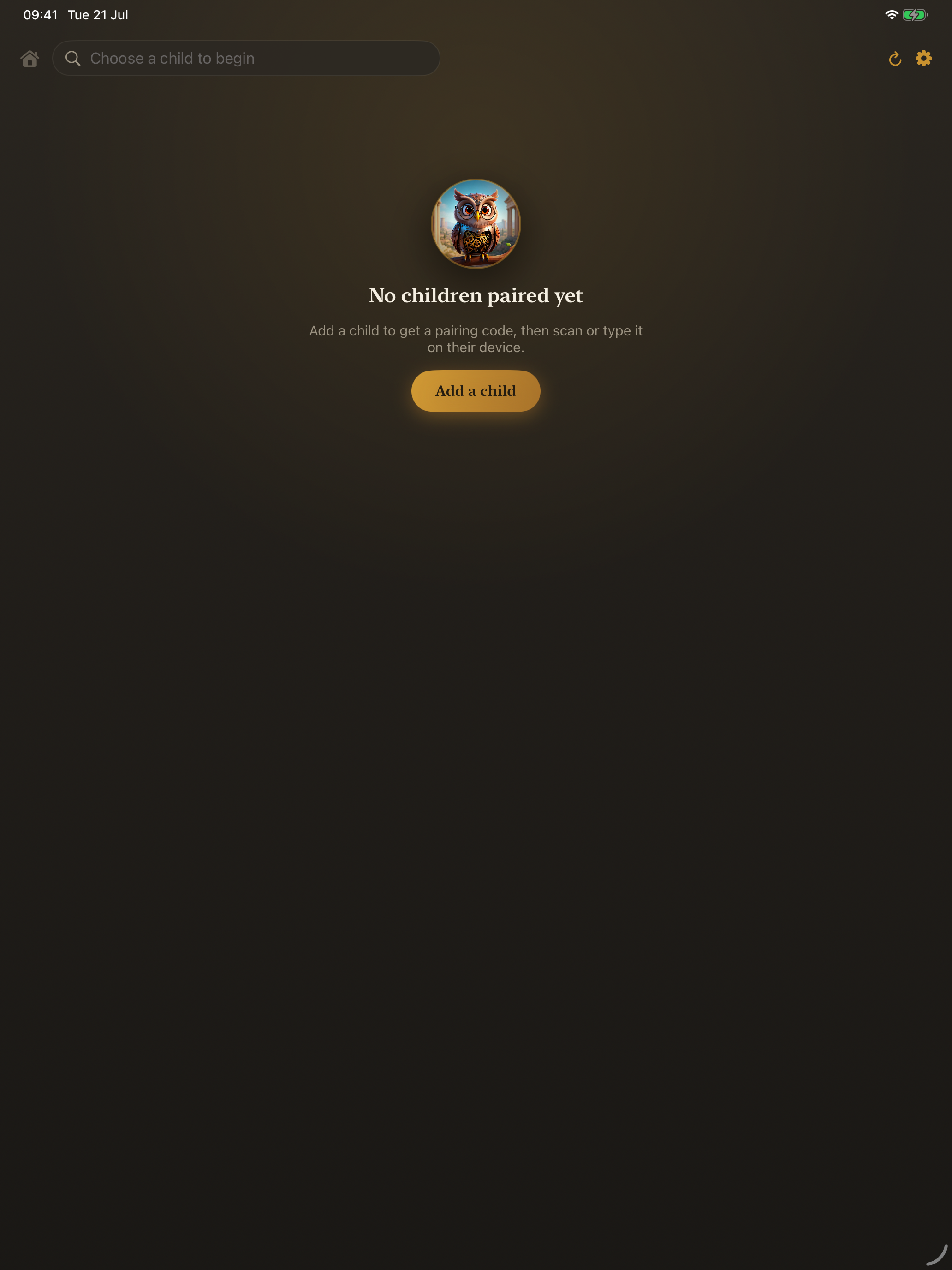 The console, before any children are added
Give your child a name, pick a character for them, and choose their age range — this sets sensible starting defaults for how carefully Minerva judges pages and videos (you can fine-tune everything later).
Leave Centralise settings on if you'd like to manage this child's settings here in the console and have them apply across all of their devices.
Tap Create to generate a pairing code.
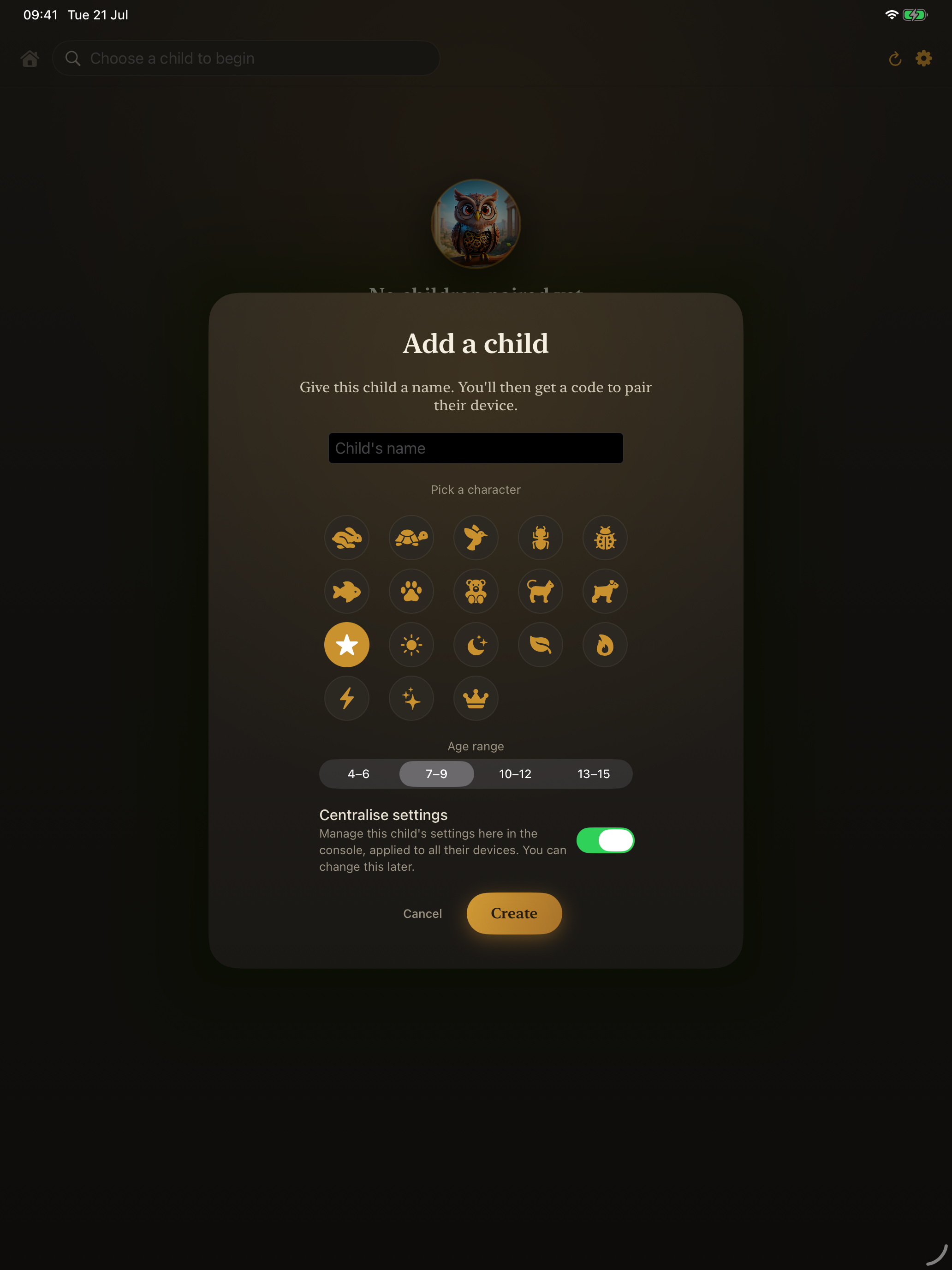 Add a child
Minerva shows a pairing code / QR for the new child. On the child's device, open Minerva, choose “Connect to a grown-up,” and scan the code (or type it in).
Their settings arrive automatically — there's nothing else to set up on their end. Once paired, the child appears on your console, and their activity and alerts flow to you.
Scan from the child's device — screenshot coming soon
Tap the gear in the top-right of the console any time to:
· Add another child or manage devices
· Invite a co-parent, or connect to another grown-up's console (view-only sharing)
· Set how long the activity log is kept
· Use this device as a child browser too, or reset Minerva
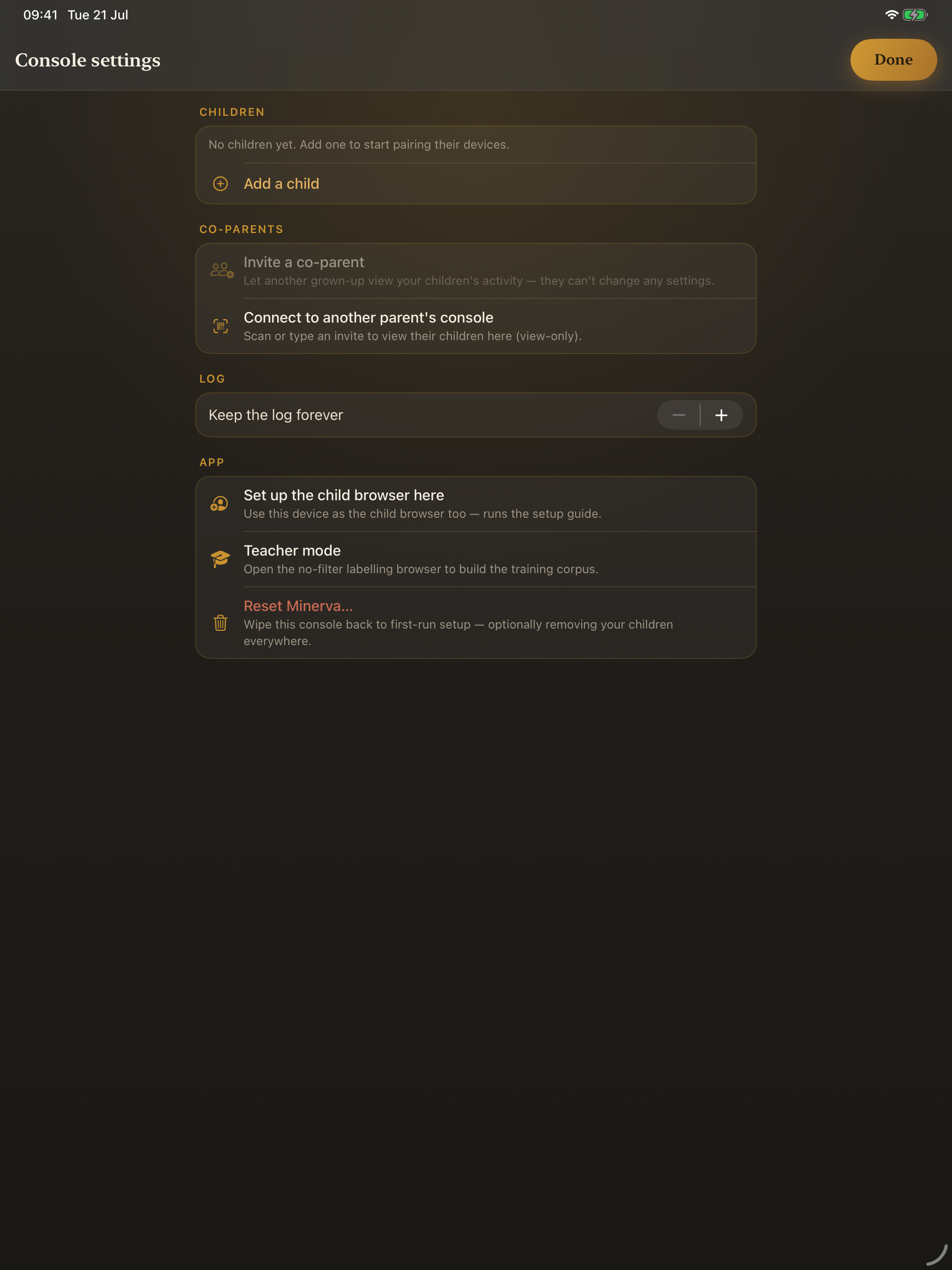 Console settings
“You'll need to be signed in to iCloud.” The console needs iCloud to create and sync your child's profile. If you see this when tapping Create, open the device's Settings → sign in to iCloud, then come back and try again.
More guides — pairing a child's device, the coach, screen time — coming soon.